Multi-Factor Authentication: The Single Biggest Security Upgrade for Canadian SMBs
When the City of Hamilton's cyber insurance claim was denied after a ransomware attack that cost $18.3 million to recover from, the reason was straightforward: multi-factor authentication had not been fully implemented. The insurer determined this was a material gap in the city's security posture.
Hamilton is a large municipality — but the lesson applies to every Canadian business. MFA is no longer a "nice to have." It has become the single most impactful security control a small business can implement, and one of the first things cyber insurers, partners, and regulators look for.
What MFA Is and Why It Works
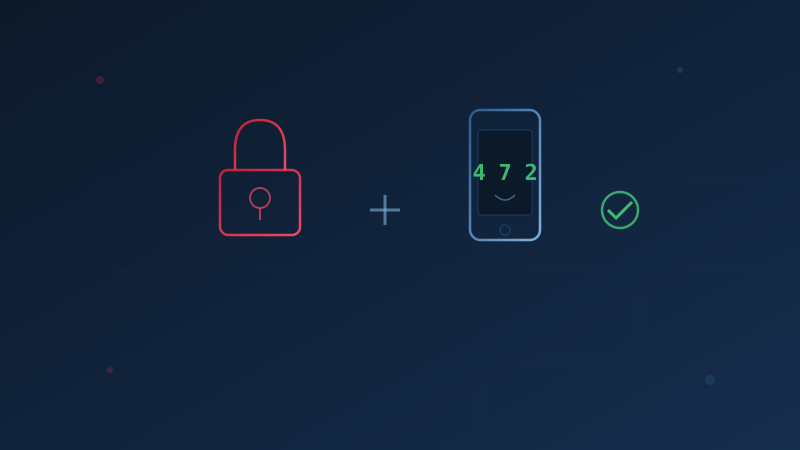
Multi-factor authentication requires two or more verification steps to log in to an account. Typically, this means something you know (your password) plus something you have (your phone or a security key).
The principle is simple: even if an attacker obtains your password — through phishing, a data breach, or brute force — they still cannot access your account without the second factor. The password alone is no longer sufficient.
Microsoft's security research has found that MFA blocks more than 99.2% of automated account compromise attacks. Google reported similar findings, noting that security keys (a hardware form of MFA) prevented 100% of automated bot attacks and 100% of bulk phishing attacks in their study.
These aren't marginal improvements. MFA eliminates the vast majority of the attack surface that credential-based attacks rely on.
The Canadian Context
The Canadian Centre for Cyber Security's Baseline Controls address authentication under BC.5 (User Authentication and Authorization). The guidance recommends that organizations implement MFA wherever possible, particularly for:
- Remote access to organizational systems
- Administrative or privileged accounts
- Access to cloud-based services
- Any externally facing login portal
Despite MFA being one of the most effective and least costly controls available, adoption among Canadian businesses remains far too low — surveys consistently find that a majority of Canadian SMBs have not yet implemented MFA across their critical systems.
The gap between the effectiveness of MFA and its adoption rate among Canadian SMBs remains one of the largest missed opportunities in business cybersecurity.
Types of MFA
Not all MFA is created equal. Here are the most common forms, from least to most secure:
SMS Codes
A one-time code sent to your phone via text message. This is the weakest form of MFA because SMS messages can be intercepted through SIM-swapping attacks — where an attacker convinces your mobile carrier to transfer your number to their device. The convergence of cyber and physical crime has made SIM-swapping increasingly common.
Verdict: Better than no MFA. Use it if it's the only option available, but move to an authenticator app when possible.
Authenticator Apps
Apps like Microsoft Authenticator, Google Authenticator, or Authy generate time-based one-time codes that refresh every 30 seconds. These codes are generated on your device and don't travel over the cellular network, making them immune to SIM-swapping.
Verdict: Good protection for most businesses. This is the recommended default for Canadian SMBs.
Push Notifications
Some authenticator apps (particularly Microsoft Authenticator and Duo) send a push notification asking you to approve or deny the login. This is convenient but can be exploited through "MFA fatigue" attacks — where an attacker repeatedly sends push notifications until the user taps "approve" to make them stop.
Verdict: Good, but enable number matching (where the app displays a number that must be entered on the login screen) to prevent fatigue attacks. Microsoft now requires number matching by default.
Hardware Security Keys
Physical devices (like YubiKey or Google Titan) that you plug into a USB port or tap against your phone. These are the most resistant to phishing because they verify the legitimacy of the website you're logging into — a fake login page won't trigger the key.
Verdict: The strongest option. Recommended for administrators, executives, and anyone with access to sensitive financial or customer data.
Where to Enable MFA First
If you're starting from zero, prioritize in this order:
1. Business Email (Highest Priority)
Email is the master key to most business accounts — it's used for password resets, contains sensitive communications, and is the primary target for business email compromise. If an attacker controls your email, they effectively control your digital identity.
- Microsoft 365: Enable Security Defaults in Azure AD (free with all plans) to require MFA for all users
- Google Workspace: Enable 2-Step Verification in the Admin console and enforce it organization-wide
2. Financial and Banking Platforms
Online banking, accounting software (QuickBooks, Xero, Sage), payment processors, and payroll systems. The direct financial exposure from these accounts makes them high-priority targets.
3. Cloud Storage and File Sharing
Dropbox, OneDrive, Google Drive, SharePoint — wherever your business documents live. A compromised cloud storage account can expose customer data, financial records, and proprietary information, potentially triggering PIPEDA breach notification requirements.
4. Remote Access and VPN
If employees access business systems remotely — which most do — the remote access point must be protected with MFA. This includes VPN connections, remote desktop (RDP), and any web-based portals. Remote work without MFA on access points is one of the highest-risk configurations for any business.
5. Administrative and IT Accounts
Domain admin accounts, hosting dashboards, DNS management, website CMS logins — any account that could be used to take control of business infrastructure.
Common Objections — And Why They Don't Hold Up
"It's too inconvenient"
MFA adds roughly 10 seconds to each login. Modern implementations remember trusted devices, so you may only need to verify once per device every 30-90 days. The inconvenience of MFA is negligible compared to the disruption of a compromised account.
"My employees will resist it"
Frame it correctly: "We're adding an extra step to protect your accounts — and your personal information — from being stolen." Most employees who have experienced or heard about a cyber incident are receptive. Make the rollout gradual — start with email, then expand.
"We're too small to be targeted"
Automated attacks don't discriminate by company size. Credential stuffing tools test stolen username/password combinations against thousands of login pages simultaneously. If your credentials were exposed in any data breach and you're not using MFA, your accounts are vulnerable regardless of your business size.
"It costs too much"
MFA is free on Microsoft 365 (Security Defaults), Google Workspace (2-Step Verification), and nearly every major cloud platform. Authenticator apps are free. The only cost is the time to enable it and communicate the change to your team.
The Insurance Factor
Cyber insurance applications in Canada now routinely ask whether MFA is enabled — and increasingly, they ask specifically where it's enabled. Common questions include:
- Is MFA required for all remote access to the organization's network?
- Is MFA required for access to email?
- Is MFA required for privileged/administrative accounts?
- Is MFA required for access to backup systems?
Answering "no" to these questions can result in higher premiums, coverage exclusions, or outright denial of coverage. As Hamilton's experience demonstrated, even having a policy doesn't guarantee a claim will be paid if MFA wasn't properly implemented.
For a detailed look at how cyber insurance works and what insurers require, see our guide to cyber insurance for Canadian SMBs.
Implementation Checklist
For a Canadian small business implementing MFA for the first time:
- Inventory all business accounts — List every cloud service, platform, and application your business uses
- Check MFA availability — Nearly all modern business platforms support MFA; check the security settings of each
- Start with email — Enable MFA on your business email platform first (Microsoft 365 or Google Workspace)
- Choose your default method — Authenticator apps are the best balance of security and convenience for most SMBs
- Communicate the change — Give your team advance notice, explain why you're doing it, and provide setup instructions
- Set a deadline — Give employees one to two weeks to set up MFA on their accounts, then enforce it
- Keep backup codes — Most platforms provide one-time backup codes in case you lose access to your authenticator. Store these securely (printed, in a safe — not in email)
- Document the process — Add MFA requirements to your onboarding checklist for new employees
The Baseline Controls Connection
MFA directly addresses BC.5 (User Authentication and Authorization) in the Canadian Centre for Cyber Security's Baseline Controls, but its benefits extend across multiple control areas:
- BC.1 (Incident Response) — MFA prevents many of the incidents that would require an incident response in the first place
- BC.6 (Security Awareness) — Rolling out MFA is itself a security awareness exercise for your team
- BC.9 (Network Security) — MFA on remote access points strengthens network perimeter controls
- BC.12 (Access Control) — MFA enforces the principle that access requires verified identity, not just knowledge of a password
Our free assessment evaluates your organization's authentication practices alongside the other 12 Baseline Control areas. It takes under 10 minutes and identifies the specific gaps that MFA — and other controls — can close.
Disclaimer: This article is intended for general informational purposes only and does not constitute professional cybersecurity, legal, IT, or compliance advice. While we strive to ensure accuracy, the cybersecurity landscape changes rapidly and information may become outdated. Organizations should consult with qualified cybersecurity professionals and legal counsel to assess their specific situation and develop appropriate security policies. Use of this information is at your own risk. See our Privacy Policy for more information.
Cybersecurity Canada is an independent resource and is not affiliated with, endorsed by, or connected to the Canadian Centre for Cyber Security, the Communications Security Establishment, or the Government of Canada.
How does your organization measure up?
Take our free cybersecurity assessment based on the Canadian Centre for Cyber Security's Baseline Controls. 50 questions, under 30 minutes, 100% confidential — your answers never leave your browser.
Take the Free Assessment